Messaging
Messaging is the conversation space inside your church app. Members talk to each other in groups — a Bible class, the youth parents, the worship team — and those conversations stay in the app instead of scattering across text threads nobody can find later.
It is not the tool for announcements to the whole congregation. For that, see Communication.
Your Groups
Opening Messaging shows Your Groups — every group you belong to, with its most recent activity.
If you haven't joined anything yet, you'll see You are not in any groups.

Tap a group to open the conversation.
Inside a conversation
A group conversation holds more than plain text:
- Messages from members, newest at the bottom
- Polls — a quick question with live results (more on polls)
- Events — a card members can RSVP to without leaving the chat (more on events)
- System notes such as Kimberly Garcia was added to the group, so it's clear who joined when
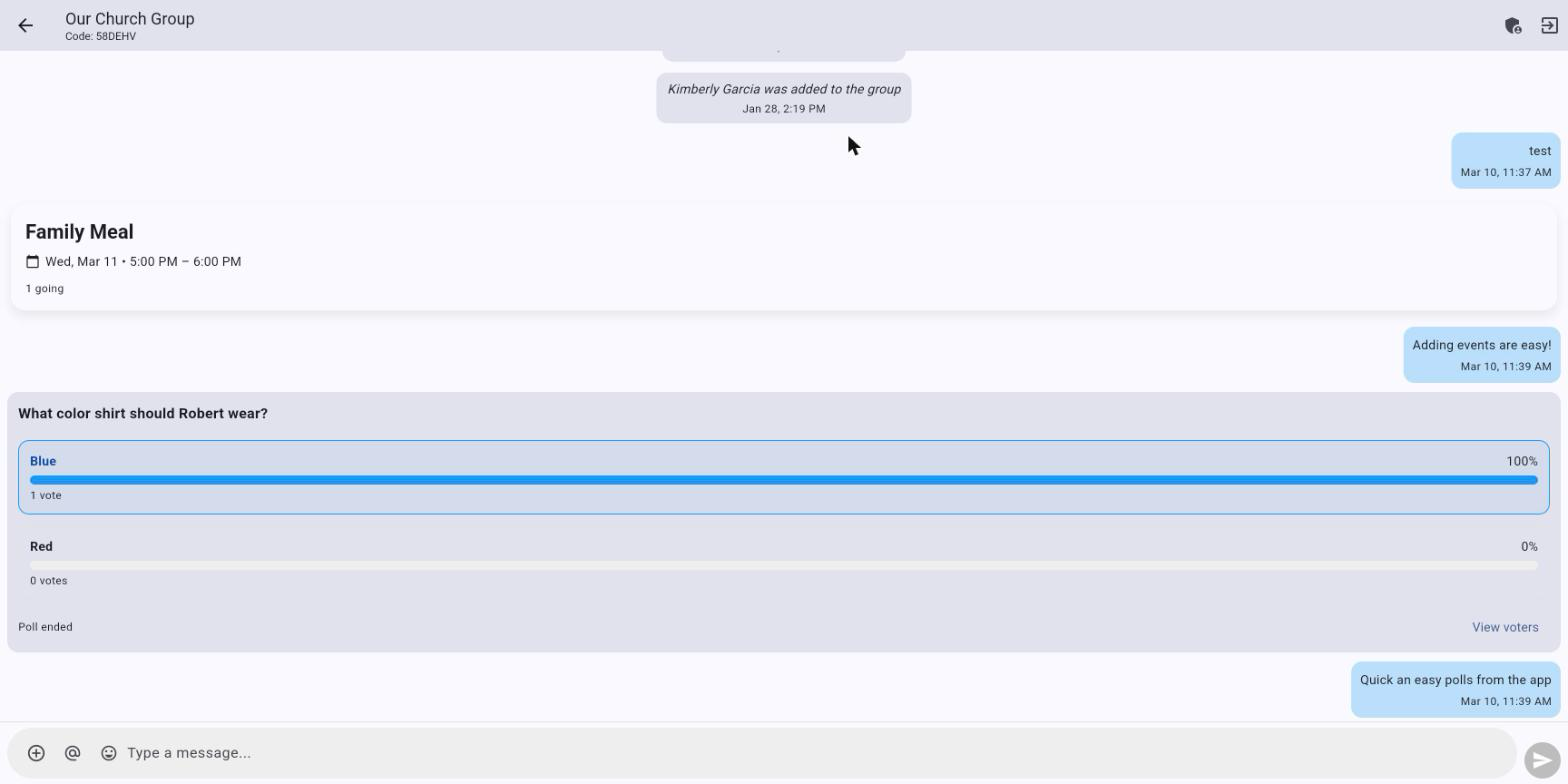
The message box has three controls to its left:
| Control | What it does |
|---|---|
| + | Attach an image, start a poll, or create an event |
| @ | Mention someone so they're notified directly |
| Emoji | Insert an emoji |
Joining a group
There are two ways in:
- Someone adds you. A group admin adds you from the member list, and the group appears under Your Groups.
- You use a group code. Every group has a short code, like
58DEHV. Choose Join Group, enter the code, and you're in.
Admins decide whether that code is visible — the Show Group Code setting displays it in the chat header so members can pass it along.
Groups marked Public can be viewed by anyone in your church. Groups that aren't stay private to their members.
For parents
If your children are in the directory, you can see the groups they belong to. The app shows a {child}'s Groups view listing each one, so you can keep an eye on the conversations they're part of.
See Child Controls for the rest of the parental settings.
Leaving a group
Open the group, choose Leave Group, and confirm. Other members see {name} left the group. You can rejoin later with the group code if the group is still active.