Calendar
The Calendar is the shared view of what's happening at your church — services, classes, workdays, the building being in use on a Saturday.
It's intentionally simple. If you need people to sign up, answer questions, or check in at the door, use the Events module instead.
Viewing the calendar
Entries are grouped by day, with Today at the top. Each one shows its title, its time, and its category if it has one.
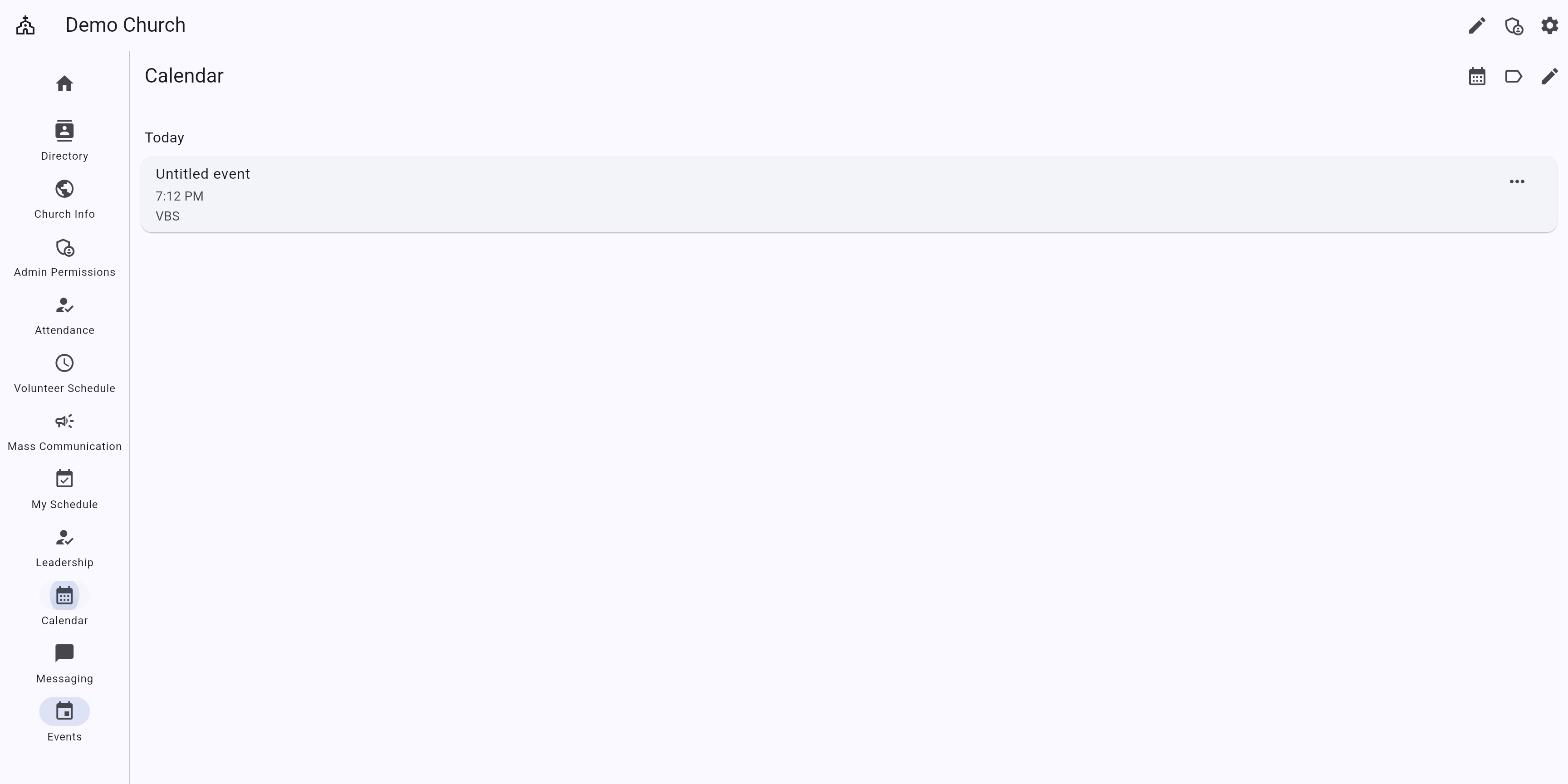
The icons in the top right let you switch the view, filter by category, and — for administrators — add and edit entries.
Adding an entry
Administrators tap the pencil, then add a new entry:
| Field | Required | Notes |
|---|---|---|
| Title | Yes | What members will see in the list |
| Start date | Yes | The day it happens |
| Start time | Yes | When it begins |
| Add end time | No | Switch on to set an End date and End time |
| Category | No | Groups related entries together — see below |
| Location | No | Where to go; useful when the church uses more than one building |
| Notes | No | Anything else members should know |
If you set an end time earlier than the start, saving fails with End time must be after the start time.
Categories
Categories let members filter a busy calendar down to what applies to them — Youth, Ladies Class, Elders.
Open Calendar Categories to manage the list. Each category can be renamed with Edit or removed with Delete. A category name can't be blank.
Deleting a category doesn't delete the entries that used it; they simply become uncategorized.
Unlike most modules, the Calendar has no separate module-level permission. Anyone who needs to add or change calendar entries needs full App Admin rights. See Module Permissions.
Related articles
- Events — events with registration and check-in
- Messaging: Events in a Conversation — a quick event inside a group chat