Downloading Attendance Data
Administrators can export attendance records from the Attendance module as a CSV file for reporting or record-keeping.
Requirements
Exporting needs App Admin, or Attendance module admin — see Module Permissions.
Steps
- Open the Attendance module.
- Tap the Admin Shield icon in the top-right corner of the screen.
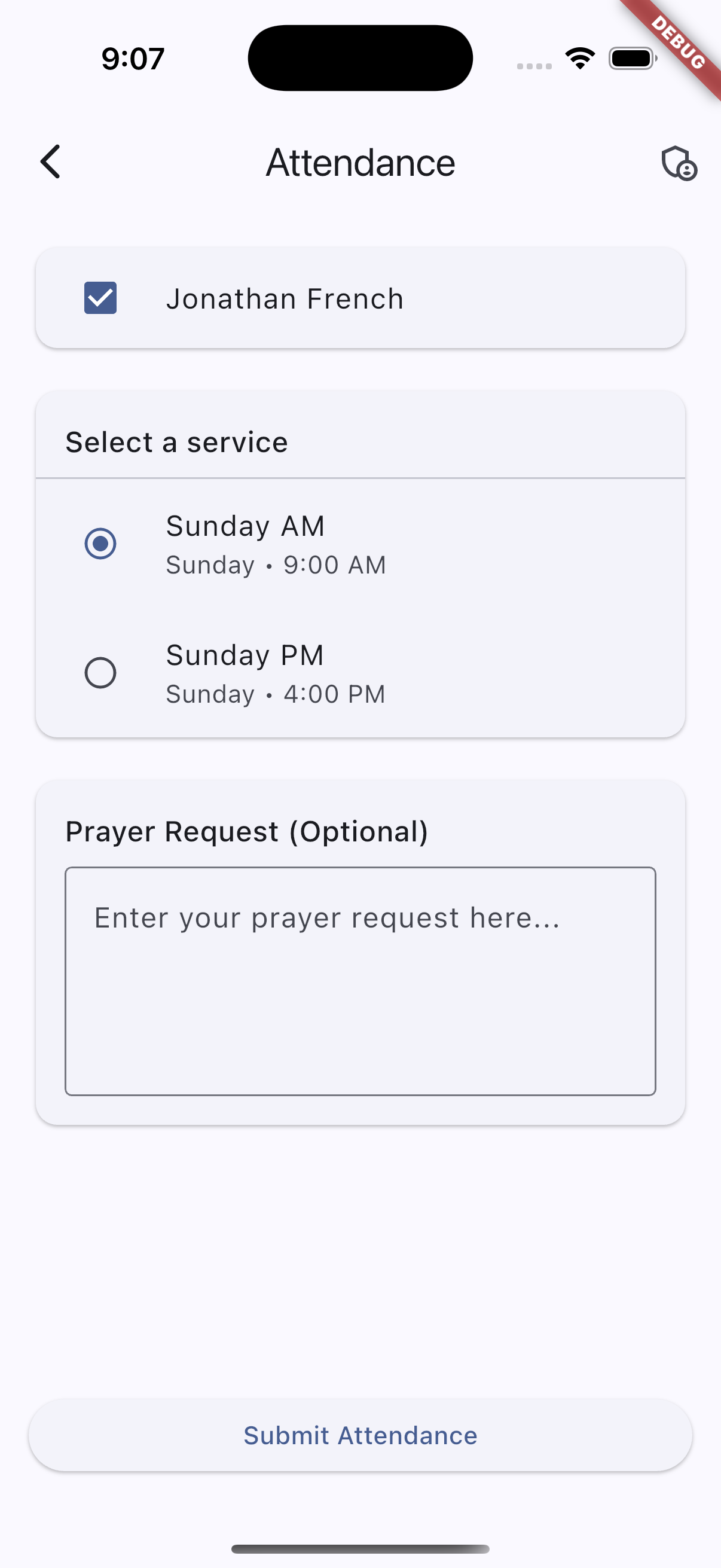
- Under Export Attendance CSV, choose the desired date range.
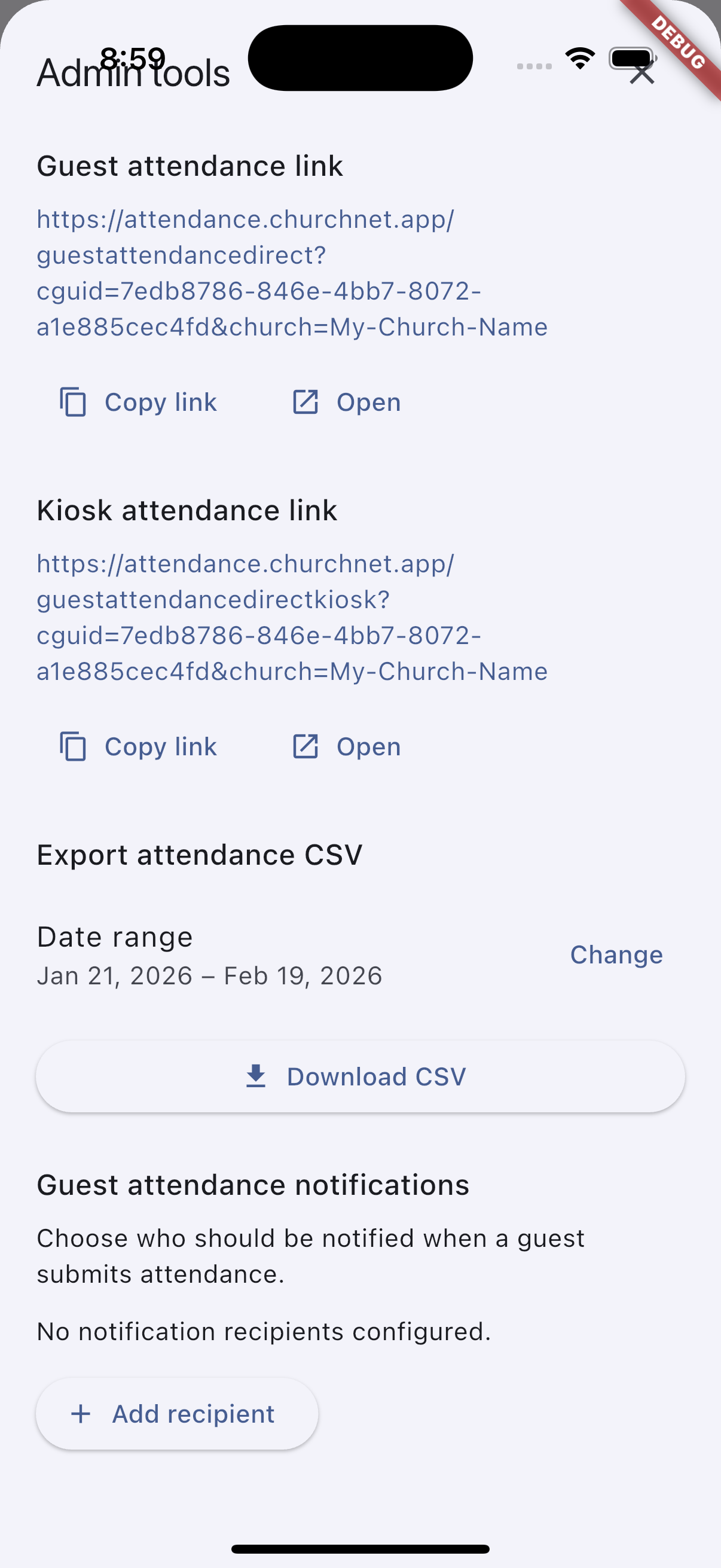
- Tap Download CSV.
The system will generate a CSV file that can be opened in Excel, Google Sheets, or other spreadsheet programs.
This file contains member contact details
The export includes every attendee's email, phone number, and home address. Treat it like the directory itself — don't email it around or leave it in a shared drive folder that the whole congregation can read.
Fields Included in the Export
| Field | Description |
|---|---|
| serviceName | Name of the service or event |
| serviceDate | Full date of the service |
| serviceDateKey | Internal date key used for grouping records |
| serviceDayOfWeek | Day of the week the service occurred |
| isGuest | Indicates if the attendee is a guest (true or false) |
| familyName | Family last name |
| fullName | Attendee’s full name |
| Email address | |
| phone | Phone number |
| address | Street address |
| city | City |
| state | State |
| zip | ZIP / postal code |
| createdAt | Date and time the attendance record was created |