Managing Permissions
This guide covers how to add new admins, edit existing permissions, and remove admin access in ChurchNET.
Note: Only App Admins can manage permissions. If you do not see the Admin Permissions screen, contact your church's App Admin.
Opening the Admin Permissions Screen
Open the Admin Permissions tile on your home screen.
You will see a list of all users who currently have any admin role, each labeled with their level — for example App Admin.
Each row has two controls:
- The pencil opens the permission editor for that person.
- The arrow opens their directory profile.
If you don't see the tile at all, the module hasn't been enabled for your church — see Module Management.
Adding a New Admin
- Tap the add person button in the bottom-right corner. The dialog is titled Add Module Admin.
- Search for a member by name.
- Select them from the results.
- Configure their permissions (see below).
- Save.
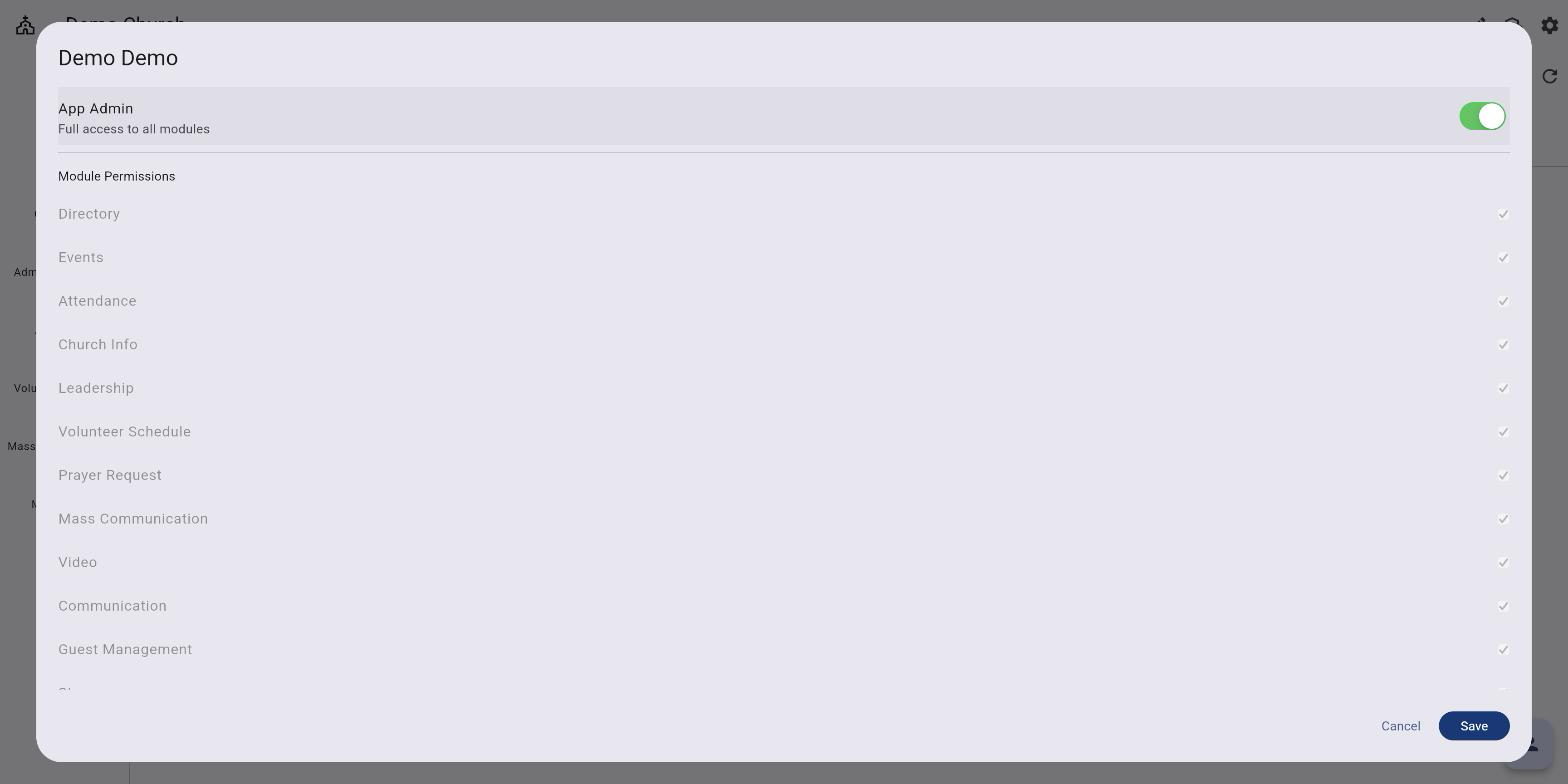
Editing Permissions
Tap the pencil beside someone in the list to open the permission editor. From here you can adjust their access level.
Setting App Admin
- Toggle App Admin on to grant full access to all modules and settings. The switch is labeled Full access to all modules.
- While App Admin is on, the Module Permissions list below is greyed out — an App Admin already has everything, so there is nothing left to grant.
Setting Module Admin
- Toggle App Admin off to configure per-module access
- Individually check or uncheck each module to grant or revoke admin access for that module
- A user can have admin access to any combination of modules
Removing Admin Access
To remove all admin access from a user:
- Tap the user in the admin list
- Turn off App Admin (if enabled)
- Uncheck all module permissions
- Save your changes
The user will be removed from the admin list and will return to regular member access.
Real-Time Updates
Permission changes take effect immediately. There is no need for the affected user to restart the app — ChurchNET uses real-time listeners to update permissions as soon as they are saved.
Demo Account Restriction
Permissions cannot be changed for the demo user account. If you are using a demo church, the demo user's permissions are locked and cannot be modified.
Related Articles
- Admin Permissions Overview — Understanding permission levels
- Module Permissions — Full list of grantable modules